
Silk Mobile
Table of Contents (Homepage)
- Overview
- Setting Up
- Getting Started
- How To
- Connecting Devices And Emulators
- Preparing Applications For Testing
- Managing Applications
- Recording Tests
- Working With Test Commands
- Adding Commands To Your Scripts
- Object Commands
- Click
- ClickCoordinate
- ClickIn
- ClickOffset
- Drag
- ElementGetProperty
- ElementGetTableRowsCount
- ElementListPick
- ElementListSelect
- ElementListVisible
- ElementScrollToTableRow
- ElementSendText
- ElementSetProperty
- ElementSwipe
- ElementSwipeWhileNotFound
- GetAllValues
- GetElementCount
- GetElementCountIn
- GetTextIn
- IsElementBlank
- IsElementFound
- IsFoundIn
- LongClick
- RunNativeAPICall
- SendWhileNotFound
- VerifyElementFound
- VerifyElementNotFound
- VerifyIn
- WaitForElement
- WaitForElementToVanish
- GetCoordinateColor
- DragDrop
- Application Commands
- Device Commands
- Web (Hybrid) Specific Commands
- Utilities Commands
- Monitoring Commands
- Configuration Commands
- ExtractLanguageFiles
- SetDefaultClickDownTime
- SetDefaultTimeOut
- SetDefaultWebView
- SetDragStartDelay
- SetInKeyDelay
- SetKeyToKeyDelay
- SetLanguage
- SetLanguagePropertiesFile
- SetShowImageInReport
- SetShowPassImageInReport
- SetShowReport
- SetSpeed
- SetThrowExceptionOnFail
- SetWebAutoScroll
- StartStepsGroup
- StopStepsGroup
- TextFilter
- Miscellaneous Commands
- Controlling Element Identification Rules
- Editing Test Objects
- Executing Test Scripts
- Report Of Executed Test
- Working From Code Environment
- Continuous Integration
- Layout Verification Tests
- Use Device Vitals Monitors
- Troubleshooting
- Terminology
Instrumenting BlackBerry Applications
To create a new project:
Step 1: Open the workspace that contains your application's project.

Step 2: Create a new project.

-
Select ‘BlackBerry Project’ as the project type.
-
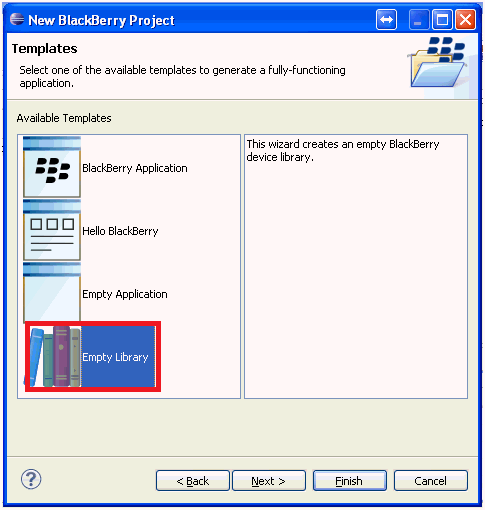
Name your new project ( ‘SilkMobileLib’), Click Next.
-
Select ‘Library Project’ and click ‘Finish’.
Step 3: Add a compiled JAR file to the project ( First download the ExperitestBBLib.jar from this Link)
-
In the navigation pane, select the project.
-
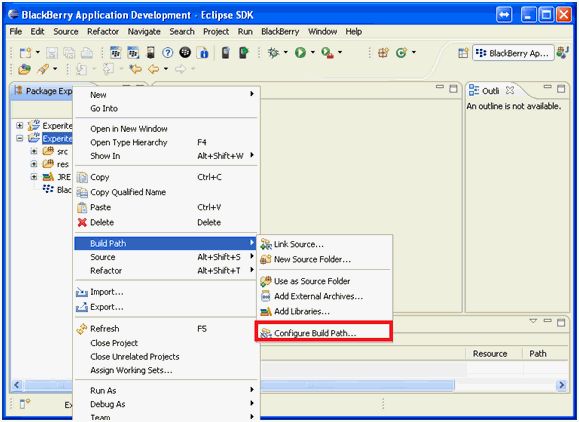
On the Build menu, select Project > Add File to Project.
-
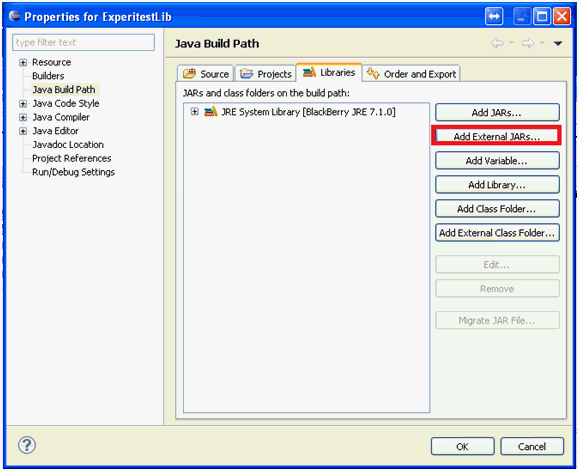
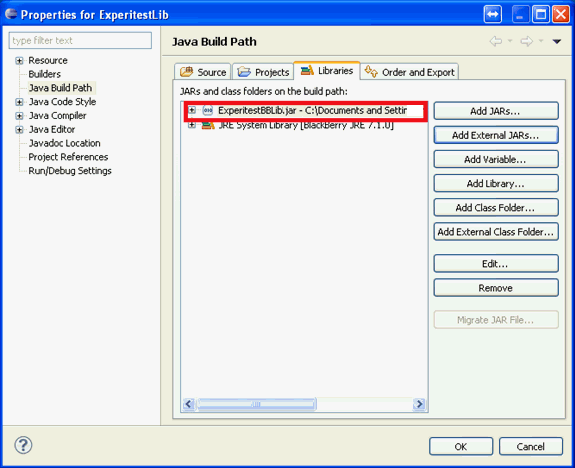
Select the appropriate JAR file and click Open.
-
Go to the ‘Order and Export’ tab and check the imported Jar file for export.
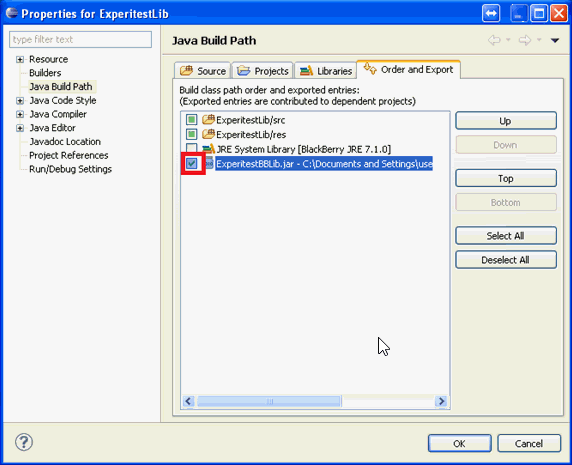
-
Verify that the new project is using the right Java version
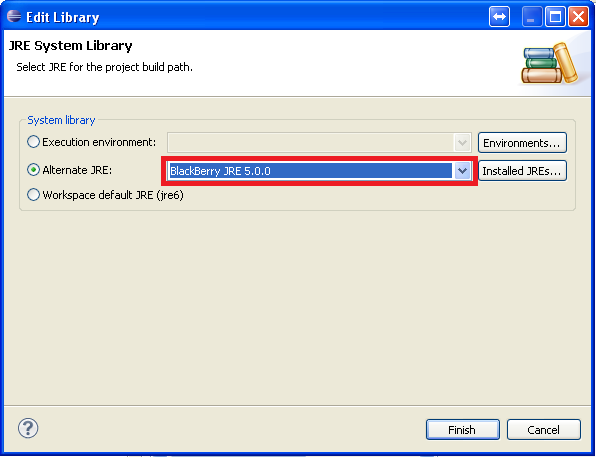
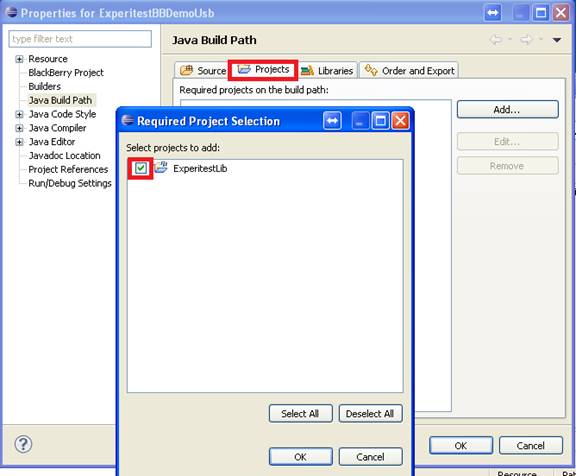
Step 4: Add the new project to your application project
-
Open your project properties and import the new project into your dependent projects tab.
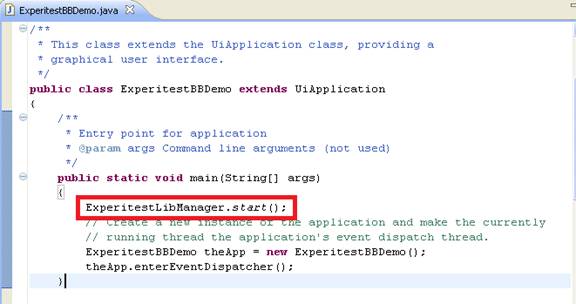
Step 5: Code changes need to be added into the application
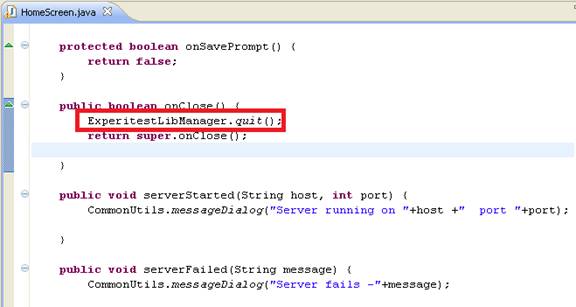
You will need to add 2 lines of code, one into the ‘main’ method and the other into the ‘exit’ or ‘close’ methods.
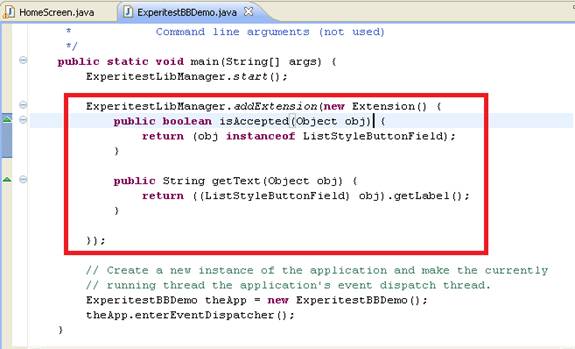
Step 6: UI extension for non-standards UI elements
If you have a non-standards UI elements you can add an extension like in the following example:
Step 7: Application installation - use the Application manager
-
Open the application manager
-
Import the application file
-
Install on the device
For further information go to Application Manager
-
If you have previous installation of your application on the device please uninstall them first.
-
If you are using JavaLoader to install the application please install your application jad file (located in the standard folder) as well as a jad file in the name of ExperitestLib.jad (it will have the same name as the new project you have created).